Give your baby ears! Set up voice recognition so your bot can hear and respond to you in Second Life.
Your baby can now hear you on voice! With AI Voice Detection enabled, your bot recognizes when you are speaking nearby, making interactions feel more natural, responsive, and lifelike. Instead of relying solely on typed chat, your baby can now respond to your voice, helping roleplay feel more connected and immersive.
Whether you are talking during storytimes, family time, bedtime routines, playdates, or everyday roleplay, this feature helps your baby feel more aware of the world around them.
| 💡 Available on all bot types | AI Voice Detection is available on every MoonBots bot, not just Premium Bots. Voice Security settings are available to everyone as well. |
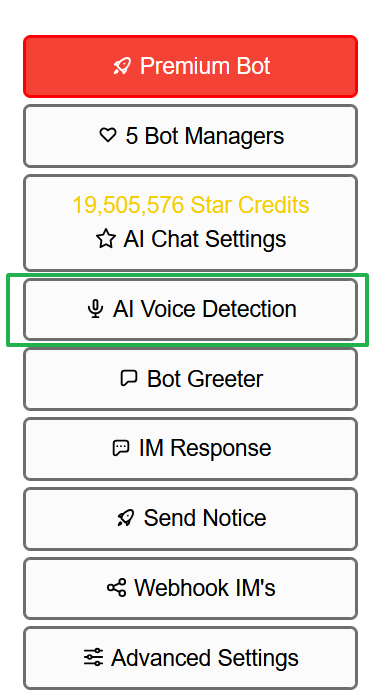
1. From your bot's control panel, click AI Voice Detection under the bot's menu.
 |
2. The AI Voice Detection Settings window opens. By default, voice detection is off.
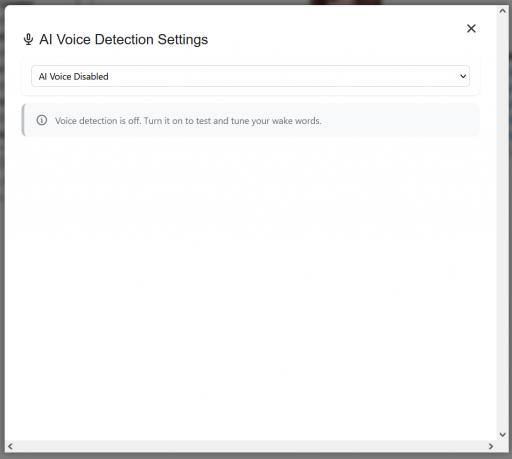 |
3. Use the dropdown at the top of the window and change it from AI Voice Disabled to AI Voice Enabled.
Once enabled, two tabs appear: Voice Detection and Voice Security. Voice Detection controls how your bot listens for your voice. Voice Security controls who is allowed to talk to your bot. Both are covered below.
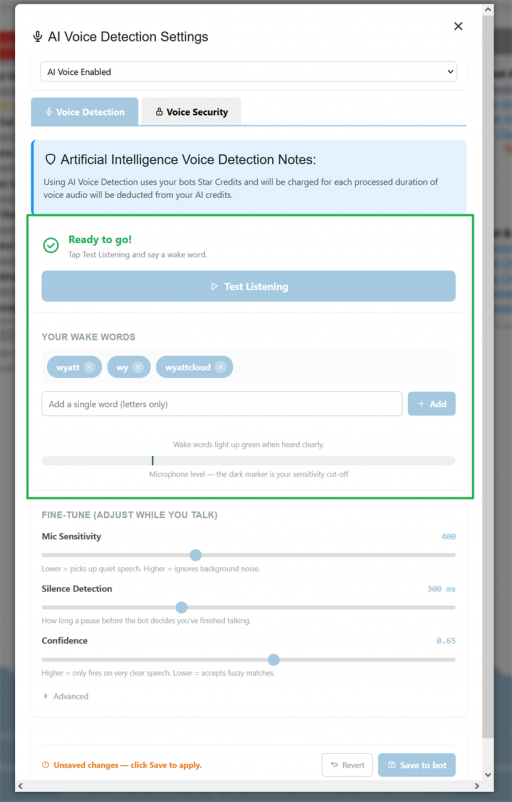
Wake words are the words your bot listens for to know you are talking to it. They are separate from the AI trigger words used for typed chat, but you can reuse a trigger word as a wake word too. For example, your bot's name works well as a wake word.
1. Type a single word into the wake word box (letters only) and click Add.
2. Repeat until you have added at least 3 wake words. You cannot save your settings until this minimum is met.
3. Once your bot hears a wake word clearly, it lights up green in the wake word list, letting you confirm your bot can hear you before you save.
 |
| 💡 Tip | Pick wake words that are easy to say clearly and are not common everyday words, so your bot does not trigger by accident during normal conversation. |
1. Click Test Listening.
2. Say one of your wake words out loud using your normal speaking voice and microphone setup.
3. Watch the microphone level bar. The dark marker on the bar shows your current sensitivity cutoff, so you can see whether your voice is registering above it.
If your bot is not picking up your voice, or it is picking up too much background noise, move on to the fine-tuning sliders below.
The fine-tune sliders let you adjust how your bot listens. Every headset and microphone setup is a little different, so plan to play around with these settings while testing to find what works best for your own audio setup.
Controls how loud your voice needs to be to register. Lower values pick up quieter speech. Higher values ignore background noise.
Controls how long a pause needs to be before your bot decides you are finished talking, measured in milliseconds.
Controls how closely your speech needs to match a wake word before your bot responds. Higher values only fire on very clear speech. Lower values accept fuzzy matches.
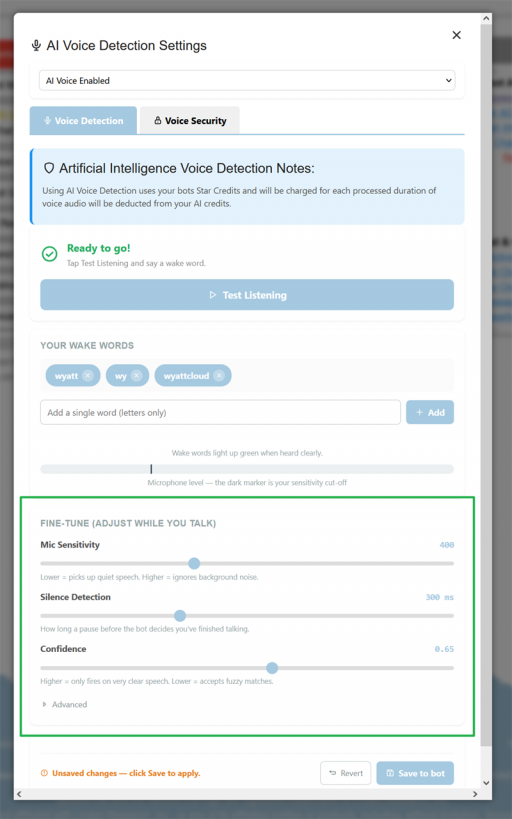 |
An Advanced section is also available below the sliders for further customization.
Once you are happy with your settings, click Save to bot.
Switch to the Voice Security tab to control who your bot will listen and respond to.
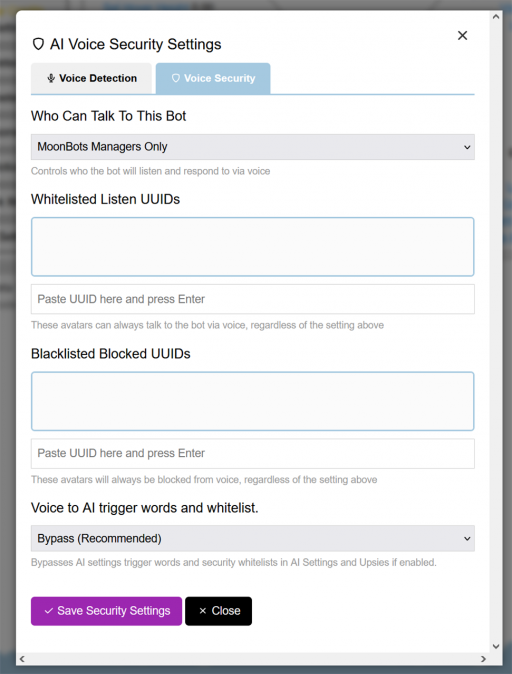 |
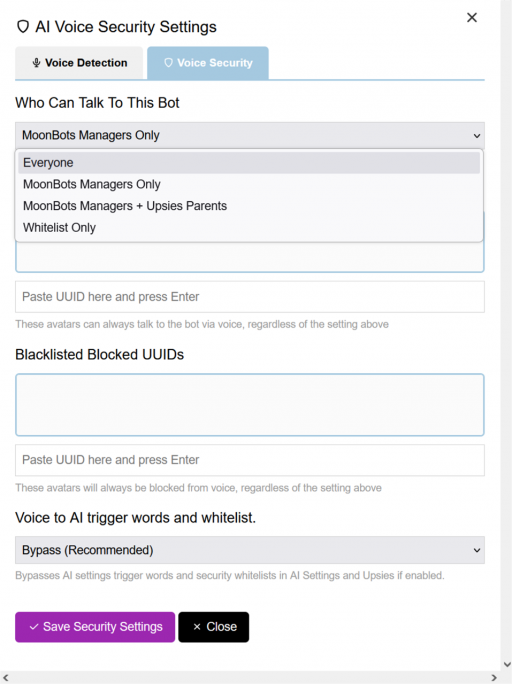
This dropdown controls who your bot will listen and respond to via voice. Choose from:
| Option | What it does |
| Everyone | Your bot listens and responds to voice from any nearby avatar. |
| MoonBots Managers Only | Only avatars set as Bot Managers can talk to your bot via voice. This is the default. |
| MoonBots Managers + Upsies Parents | Bot Managers and avatars set as parents in Upsies! can talk to your bot via voice. |
| Whitelist Only | Only avatars you add to the Whitelisted Listen UUIDs list below can talk to your bot via voice. |
 |
1. Whitelisted Listen UUIDs: avatars pasted here can always talk to your bot via voice, no matter what the Who Can Talk To This Bot setting above is set to.
2. Blacklisted Blocked UUIDs: avatars pasted here are always blocked from voice, no matter what the Who Can Talk To This Bot setting above is set to.
Paste an avatar's UUID into the box and press Enter to add it to either list.
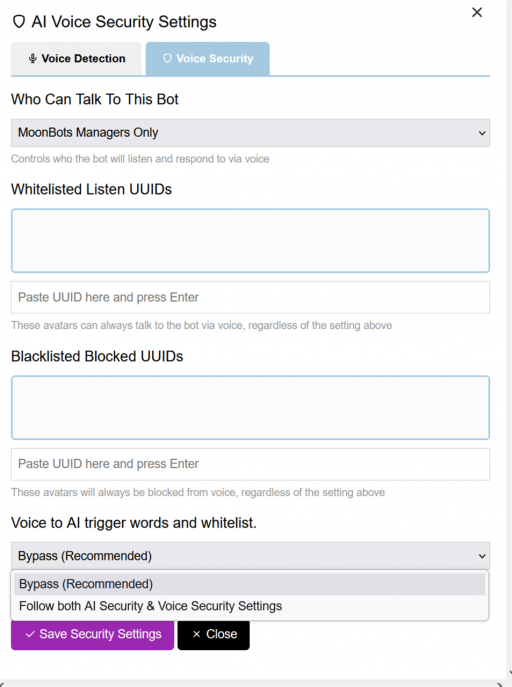
This setting controls how your bot's voice detection interacts with the trigger words and whitelist settings already configured in AI Settings and Upsies!.
| Option | What it does |
| Bypass (Recommended) | Voice detection bypasses the AI trigger words and security whitelists set in AI Settings and Upsies!, if enabled. Your wake words are all your bot needs to respond by voice. |
| Follow both AI Security & Voice Security Settings | Voice detection follows the trigger words and whitelist rules from AI Settings and Upsies! in addition to the Voice Security settings on this tab. |
 |
Click Save Security Settings to apply your changes, or Close to exit without saving.
| ⚠ This feature uses Star Credits | AI Voice Detection uses your bot's Star Credits for its typed responses, just like normal chat, and also to process the voice audio it hears. Credits are deducted based on the duration of audio processed, so keep an eye on your Star Credits balance if you plan to use voice chat often. |
1. My bot is not hearing me at all. Make sure you are within normal Second Life chat range of your bot, since voice detection only works when the speaking avatar is close enough for the bot to hear local chat range voice. Also confirm AI Voice is set to Enabled and that you have saved at least 3 wake words.
2. My bot responds to background noise or other people. Check your Who Can Talk To This Bot setting on the Voice Security tab, and raise the Confidence slider so your bot only fires on clear speech.
3. My bot is not picking up my voice clearly. Lower the Mic Sensitivity slider, and use Test Listening to fine-tune while you talk, since every headset and microphone setup behaves a little differently.
4. I cannot save my Voice Detection settings. You need at least 3 wake words added before you can save. Add more words in the wake word box until the minimum is met.
A few cookies keep you logged in and block bots, so those always run. Everything else stays off until you allow it: loading PayPal checkout, and any analytics we might add later. See our Cookie Policy.
Turn each purpose on or off. Nothing outside "strictly necessary" runs until you allow it, and you can change this whenever you like from the Cookie Settings link in the footer.
Keeps you logged in, protects the site from bots and abuse, and remembers settings you have deliberately changed, such as dark mode. Without these the site does not work.
PHPSESSID (login session, ends when you close the browser), cf_clearance (Cloudflare bot protection, 12 months), mb_consent (stores this choice, 6 months), theme and wm_dismissed (written only when you switch the theme or dismiss a notice, so they record a choice you made)
Loads PayPal so you can add funds to your wallet. PayPal stores data on your device to process the payment and detect fraud. If this is off, the PayPal checkout will not load until you allow it.
__paypal_storage__ and related PayPal storage, set by paypal.com
Measures which pages get used so we can improve them. Off by default and not in use today. The toggle is here so nothing can start without asking you first.
None in use today
Builds a profile of your interests to show you ads elsewhere. Off by default and not in use today.
None in use today
 MoonBots
 [Starries]