Search, wear, and manage your bot's items from anywhere
Every MoonBot comes with its own Inventory Viewer, a full browser-based copy of your bot's Second Life inventory. It works just like the inventory panel in your Second Life viewer. You can search for items, wear and remove things, read notecards, view HUDs, and share items, all without ever logging into Second Life yourself.
Best of all, it's included with every MoonBot at no extra cost. No other bot hosting service in Second Life offers an inventory tool this complete, which makes the MoonBots Inventory Viewer one of our most popular features.
You can open the Inventory Viewer right from your bot's dashboard.
Step 1: Log in to your MoonBots account and select your bot.
Step 2: Find the Inventory section on the dashboard.
Step 3: Click Inventory Viewer to open your bot's full inventory in a new view.
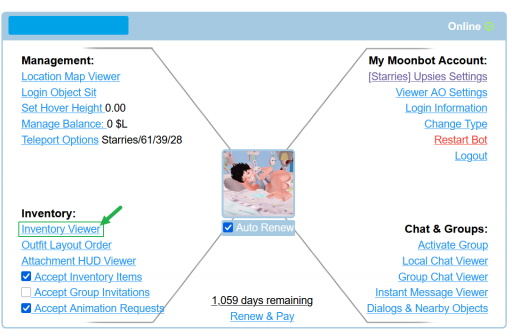
Figure 1: The Inventory Viewer link is found in the Inventory section of your bot's dashboard.
Once it loads, the Inventory Viewer shows your bot's complete inventory tree, organized into the same familiar folders you'd see in Second Life: Objects, Clothing, Body Parts, Notecards, Landmarks, Animations, My Outfits, and more. It also shows a live count of how many items have loaded, with Refresh and Full Rescan options if anything looks out of date.
Folders can hold thousands of items, especially for bots that have been active for a while, but the viewer is built to handle large inventories smoothly.
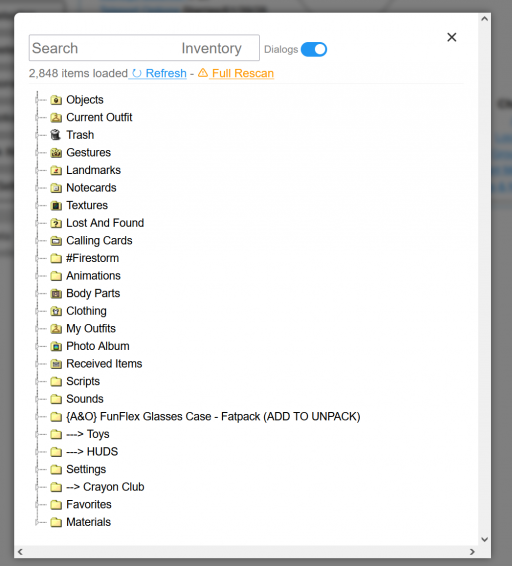
Figure 2: The full inventory tree, organized into the same folders you'd see inside Second Life.
Instead of scrolling through folders by hand, just type into the search box at the top of the viewer. The Inventory Viewer searches across the entire inventory, including items nested inside outfit folders, and returns matching results instantly.
There's also a Dialogs toggle. When it's turned on, in-world dialog menus and notecard prompts can be answered directly from the viewer.
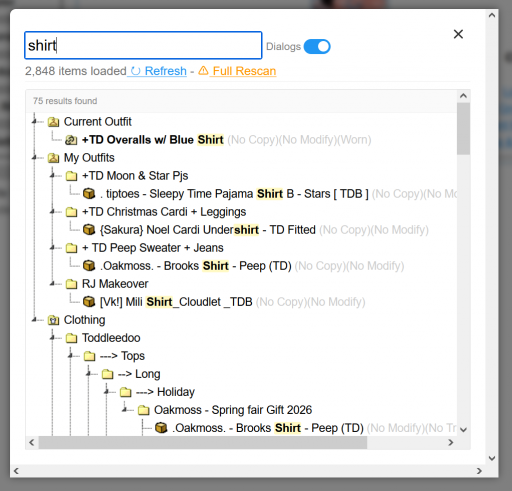
Figure 3: Searching for "shirt" finds matching items across every outfit folder in the inventory.
Right-clicking (or tapping, depending on your device) any item opens a menu of actions, just like in the Second Life viewer itself:
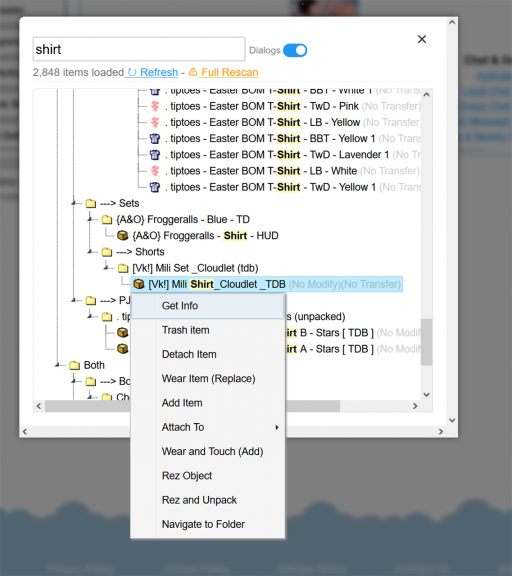
Figure 4: Right-clicking an item brings up Get Info, Give Item, Detach Item, Touch, and HUD Viewer.
Selecting Get Info opens a panel with everything you'd want to know about an item before you wear it, share it, or troubleshoot it:
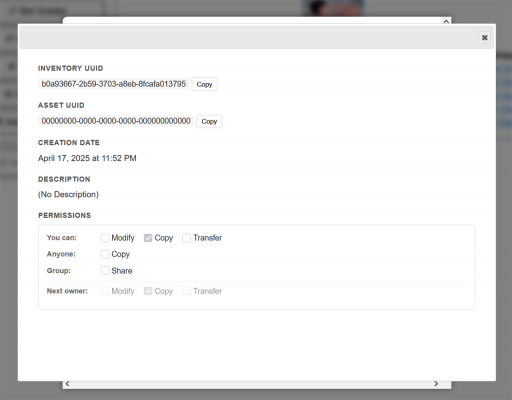
Figure 5: The Get Info panel for an item, showing its UUIDs, creation date, description, and permissions.
This is especially handy for checking copy and transfer permissions before you try to share or give away an item, or for grabbing an asset UUID when you're troubleshooting a script or a support ticket.
A few cookies keep you logged in and block bots, so those always run. Everything else stays off until you allow it: loading PayPal checkout, and any analytics we might add later. See our Cookie Policy.
Turn each purpose on or off. Nothing outside "strictly necessary" runs until you allow it, and you can change this whenever you like from the Cookie Settings link in the footer.
Keeps you logged in, protects the site from bots and abuse, and remembers settings you have deliberately changed, such as dark mode. Without these the site does not work.
PHPSESSID (login session, ends when you close the browser), cf_clearance (Cloudflare bot protection, 12 months), mb_consent (stores this choice, 6 months), theme and wm_dismissed (written only when you switch the theme or dismiss a notice, so they record a choice you made)
Loads PayPal so you can add funds to your wallet. PayPal stores data on your device to process the payment and detect fraud. If this is off, the PayPal checkout will not load until you allow it.
__paypal_storage__ and related PayPal storage, set by paypal.com
Measures which pages get used so we can improve them. Off by default and not in use today. The toggle is here so nothing can start without asking you first.
None in use today
Builds a profile of your interests to show you ads elsewhere. Off by default and not in use today.
None in use today
 MoonBots
 [Starries]