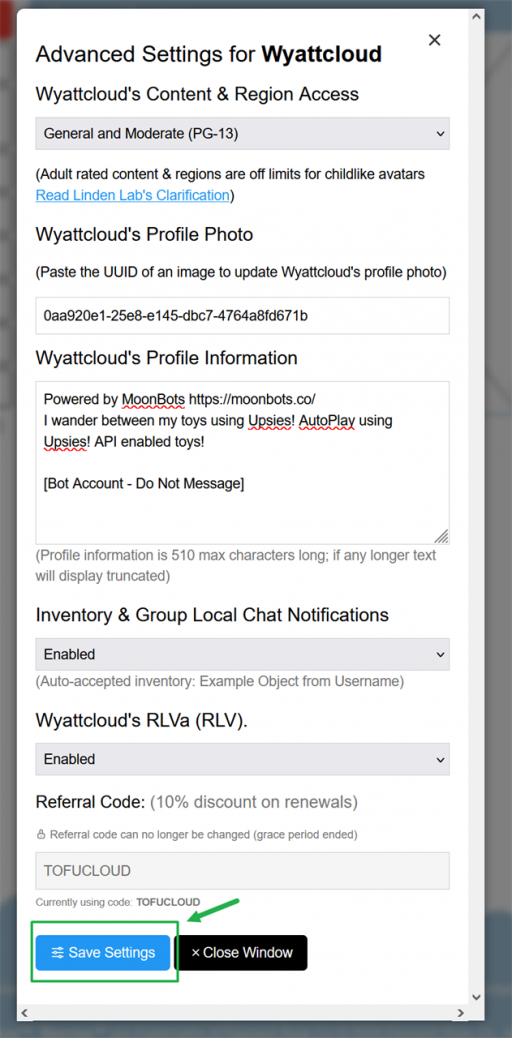
The Advanced Bot Settings panel lets you fine-tune how each of your bots behaves and presents itself in Second Life. You will find settings here for content and region access, profile photo and information, chat notifications, RLVa, and referral codes.
To open this panel, go to your bot's page on the MoonBots website and click Advanced Settings. Each bot has its own Advanced Settings panel, so changes only apply to the bot you have selected.
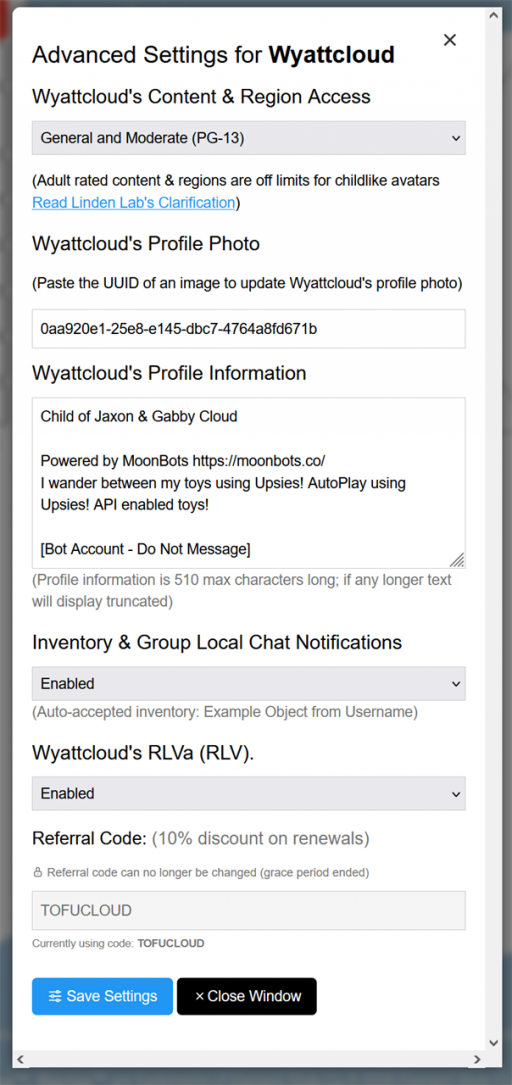
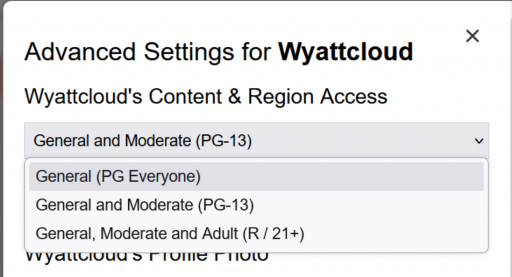
This setting controls what kind of content and regions your bot is allowed to access in Second Life. You can choose from two options:
 ]
]
Note: Adult rated content and regions are off limits for childlike avatars, regardless of this setting. This is a Linden Lab policy, not a MoonBots restriction. A link to Linden Lab's official clarification is provided directly under this setting on the Advanced Settings page.
You can update your bot's Second Life profile photo by pasting the UUID of an image you own into this field.
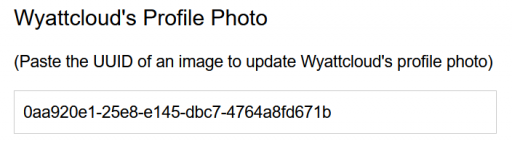
Note: The image must be one you have rights to use. You need the UUID, not a file name or the image itself.
This is the text that appears in your bot's Second Life profile. Many owners use this space for a short bio, house rules, or a simple credit line.
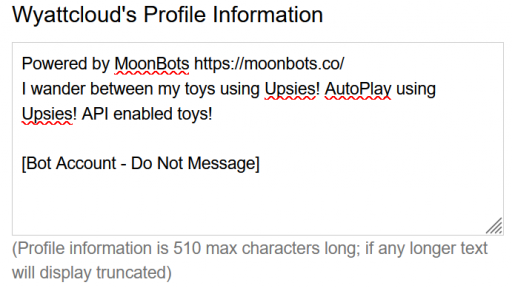
Note: Profile information can be up to 510 characters long. If your text is longer than that, Second Life will display it truncated, so keep your most important information near the beginning.
This setting controls whether your bot announces things in local chat, such as when it auto-accepts an item into its inventory (for example, "Auto-accepted inventory: Example Object from Username").
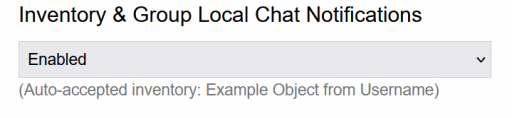
This setting turns Restrained Life Viewer (RLV) support on or off for your bot. When enabled, your bot can respond to RLV commands from scripted attachments and other objects, such as those used for outfit control or roleplay restrictions. RLVa also needs to be enabled for Upsies to work with your bot.

Important: Do not disable RLVa if you use Upsies. Upsies requires RLVa to function, so turning RLVa off will stop Upsies from working on your bot. Only disable RLVa if you are not using Upsies and do not need any other RLV-enabled items to work with your bot.
New bots have a grace period during which you can enter a referral code for a 10% discount on renewals.
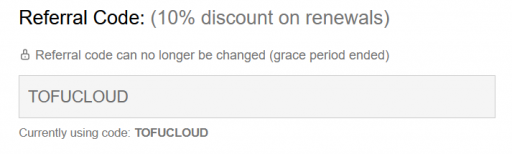
Note: A referral code can only be set during the grace period. Once the grace period ends, this field locks, and the code can no longer be changed, even if no code was entered in time.
When you are finished, click Save Settings to apply your changes. If you would rather discard your changes, click Close Window instead.
A few cookies keep you logged in and block bots, so those always run. Everything else stays off until you allow it: loading PayPal checkout, and any analytics we might add later. See our Cookie Policy.
Turn each purpose on or off. Nothing outside "strictly necessary" runs until you allow it, and you can change this whenever you like from the Cookie Settings link in the footer.
Keeps you logged in, protects the site from bots and abuse, and remembers settings you have deliberately changed, such as dark mode. Without these the site does not work.
PHPSESSID (login session, ends when you close the browser), cf_clearance (Cloudflare bot protection, 12 months), mb_consent (stores this choice, 6 months), theme and wm_dismissed (written only when you switch the theme or dismiss a notice, so they record a choice you made)
Loads PayPal so you can add funds to your wallet. PayPal stores data on your device to process the payment and detect fraud. If this is off, the PayPal checkout will not load until you allow it.
__paypal_storage__ and related PayPal storage, set by paypal.com
Measures which pages get used so we can improve them. Off by default and not in use today. The toggle is here so nothing can start without asking you first.
None in use today
Builds a profile of your interests to show you ads elsewhere. Off by default and not in use today.
None in use today
 MoonBots
 [Starries]